Hi All, I have recently posted on keyboard shortcut for Excel and Microsoft word. I have also provided you the Great Mozilla Firefox and Google chrome Keyboard Shortcuts.
Your daily using facebook so it is now necessary us to know about Facebook Keyboard shortcuts. Today I am posting about the Key board short cut for Facebook to use it in Firefox and Chrome. first I am giving you Facebook Keyboard Shortcuts Google Chrome. Google Chrome:- => Press Alt+1 : To View your News Feed => Press Alt+2 : To View your own Profile => Press Alt+3 : To View pop-up of friend requests => Press Alt+4 : To View pop-up of messages => Press Alt+5 : To View pop-up of notifications => Press Alt+6 : To View Account Settings => Press Alt+7 : To View Privacy Settings => Press Alt+8 : To View Facebook’s own profile => Press Alt+9 : To Read latest Terms of Service agreement.
Below is the Facebook Keyboard Shortcuts Mozilla Firefox. Mozilla Firefox:-
=> Shift+Alt+1 : To View your News Feed => Shift+Alt+2 : To View your own Profile => Shift+Alt+3 : To View pop-up of friend requests => Shift+Alt+4 : To View pop-up of messages => Shift+Alt+5 : To View pop-up of notifications => Shift+Alt+6 : To View Account Settings => Shift+Alt+7 : To View Privacy Settings => Shift+Alt+8 : To View Facebook’s own profile => Shift+Alt+9 : To Read latest Terms of Service agreement. => Shift+Alt+0 : To Open Facebook Help Center
Click here for More Keyboard shortcut on Google Chrome and Firefox and others.
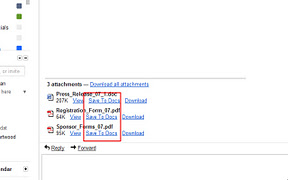
Yesterday I have one imp gmail attachment so to upload into web i first download it to my PC then upload to Google Documents. This is looks very time consuming process for slow internet Connection. So today i have found solution for it that How to Send Gmail Attachments directly To Google Docs..
Gmail Attachments To Docsis a excellent Chrome extension which will allow to save your gmail attachments directly to Google Documents.
So this will save your precious time in single task.
Click here to download Gmail Attachments To Docs Chrome extension.
After installing this Gmail Attachments To Docs Chrome extension just refresh or relogin your gmail account so in any email attachment you will see three option for that attachment.
View
save to Docs
Download to PC
Just save that docs to google docs and review or download it whenever you want. So enjoy surfing with fun tricks..!!!!
Hi All, Google chrome is widely used Internet browser these days. As by changing some of its properties you can optimize its performance. Here are some very useful Google chrome tricks that will help you a lot.
1.Google process priority should be set to High:- To implement this follow below steps Go to Start->Run-> taskmgr then press enter. Then in process tab find chrome.exe->right click on it->Set priority->High. Press Ok and you have finish it. See below screenshot o verify it.
2. Disable Google Chrome automatic updates. This will stop the Google chrome update process "GoogleUpdater.exe" and let the browser work more lightly every time. It helps the browser start-up more quickly. It also save some CPU and RAM usages. We have discussed it here and showed how to disable it.
3. Enabling GPU acceleration and composting. Now-a-days web pages are more and more graphically designed for the users. So the web browsers are implementing hardware acceleration technology for GPU. This will help the browser to accelerate the GPU (graphics processing unit) signals on pages. Go to browser address bar in Google Chrome and type "chrome://flags" and hit Enter. Enable both GPU composting on all pages and GPU accelerated SVG and CSS filters.
GPU acceleration and composting settings
4. Configuring Settings. This part will show only those settings whose are important for the browser to get some extra speed. It is also a useful idea for slow internet connection. Go to the wrench icon top-right corner and click on Settings. Expand the Show advanced settings from the bottom of this page. Google Chrome Settings a. Sign in. Connect it if you really need to sync your bookmarks, extensions, themes etc. Otherwise remain it disconnected. Sign in option to sync data b. Appearances. Un-tick on both Show home button and Always show bookmark. Appearances Settings c. Privacy. Un-tick on Use a web service to help resolve navigation errors and Automatically send usage statistics and crash reports to Google. Privacy settings d. Languages. Un-mark the offer to translate only if you don't use to read content in other languages without English. Offer to Translate Languages Read: How to Install English language in Windows 7 e. HTTPS/SSL. No need to choose Check for server certificate revocation. Because certificate revocation is not needed normally. HTPPS/SSL 5. Disable Developer mode. If you aren't a developer then disable this mode by going wrench icon > Tools > Extensions > un-chek Developer mode. Developer Mode
6. Clear Browsing Data. There is nothing new to say that your browsing data will slow down the browser. So better is to practice clearing browsing data regularly. This option is available in wrench > Settings. Clear all browsing data
After Implement these steps you will notice speed variation in performance of google chrome.
"Please share & comment if you like this post..!!!!"
Hi All, As I have received request for Google Chrome saved password backup here I have found that and post it to make it useful for you.!!!! Click here toDownload.....
Here are the steps to show how it works:-
1)Backupand Restore Wizard With this latest addition, you can easly create backup in more organized maner. Users who might have problems with the tool, can use Wizard.
2) Chrome and Chromium support You need Google Chrome installed in order for this tool to work. It supports 0.2.149.27 version of Google Chromeor Chromium, but also newer builds. To use chromium please select a path within the Google Chrome Backup.
3) Select a profile Select a profile from the list and manipulate profile by right clicking on it. Profiles have to different icons, Google Chromeand Chromium. Profile details also available.
4) Backup a profile To backup current profile click on the profile, select "Backup Profile" and select a backup path. A new file which holds your profile is created. In latest version you can also protect backup file with a password and also set a compression rate (this might slow down the process but the file will be smaller), we recommend you to use LOW compression setting, because it's a good ratio between speed of the process and size of the backup file.
5) Restore a profile To restore the old profile, click on the profile, select "Restore Profile" and navigate to *.gcb file you want to restore. Selected profile will be deleted and restored from the backup file. The program detects if a password is needed to recover backup file.
6)Create a new profile To create new Google Chrome or Chromium profile click on the "New Profile". You can specify different switches to bind them to this new profile. Run those profiles directly from Google Chrome or Chromium or create a shortcut on your desktop
7) Delete a profile To delete Google Chrome or Chromium profiles select it from the profile list and click with right mouse button and select "Delete profile". You will completely delete profile folder and custom settings associated.
8) Add existing profiles to Google Chrome backup Add Google Chrome profiles (folders) to Google Chrome backup tool by clicking "Add Existing" button on the toolbar. Then you specify the profile folder and choose the browser.
9) Tray Icon! Use tray icon for fast access and to fast run any profile.
10) Additions Select option to run Google Chrome Backupat Windows Startup.
Here I am provide you All Keyboard short-key for Google Chrome.So you can do all task using Keyboard.
CTRL + SHIFT + N : automatically opens up a Chrome ‘incognito’ window which allows you to surf on a PC without leaving behind any digital footprints.
SHIFT + Escape: allows for fast access to Chrome’s task Manager utility that allows you to nix browser processes that have gone awry.
CTRL + SHIFT + T: will open recently closed browser tabs.
Window And Tab Shortcuts: Ctrl+N – Open a new window Ctrl+Shift+N – Open a new window in incognito mode Press Ctrl,and click a link – Open link in a new tab Press Shift, and click a link – Open link in a new window Alt+F4 - Close current window Ctrl+T - Open a new tab Ctrl+Shift+T – Reopen the last tab you’ve closed. Google Chrome remembers the last 10 tabs you’ve closed. Drag link to tab – Open link in specified tab Drag link to space between tabs – Open link in a new tab in the specified position on the tab strip Ctrl+1 through Ctrl+8 – Switch to the tab at the specified position number. The number you press represents a position on the tab strip. Ctrl+9 – Switch to the last tab Ctrl+Tab or Ctrl+PgDown – Switch to the next tab Ctrl+Shift+Tab or Ctrl+PgUp – Switch to the previous tab Ctrl+W or Ctrl+F4 – Close current tab or pop-up Alt+Home – Open your homepage Ctrl+O, then select file – Open a file from your computer in Google Chrome
Shortcuts To Open Google Chrome Features: Ctrl+B – Toggle bookmarks bar on and off Ctrl+H – View the History page Ctrl+J – View the Downloads page Shift+Escape – View the Task manager
Webpage Shortcuts: Ctrl+P – Print your current page F5 – Reload current page Esc – Stop page loading Ctrl+F5 or Shift+F5 – Reload current page, ignoring cached content Press Alt, and click a link – Download link Ctrl+F – Open find-in-page box Ctrl+G or F3 – Find next match for your input in the find-in-page box Ctrl+Shift+G or Shift+F3 – Find previous match for your input in the find-in-page box Ctrl+U – View source Drag link to bookmarks bar – Bookmark the link Ctrl+D – Bookmark your current webpage Ctrl++ – Make text larger Ctrl+- – Make text smaller Ctrl+0 – Return to normal text size


 Friday, July 13, 2012
 Unknown