Showing posts with label speed. Show all posts

July 26, 2012

High Speed Download in Firefox using firedownload..

Hi All,

Here I am back with very useful post for all Mozilla firefox lovers.
If your love to download latest songs, Video and any other cool stuff from firefox, then you are now no need to install any download manager for high speed download any data.
Here I am posting about High Speed Download in Firefox using firedownload.


It is great powerful add-on of Mozilla firefox that will boost your download speed upto 10 times higher than normal  Firefox downloader.

Click here to download Firedownload add-on.

After Installing this add-on to your firefox just restart it and enjoy high speed download into your lovely mozilla  firefox.

       "Please share this post if you like it."

June 28, 2012

Speed up Internet using Command prompt trick..!!!

Hi All,
Today i am giving such a nice trick to speed up internet speed using command prompt.
In XP we can customize so many things. 


Here are steps to do it:-
1. Go to Start -> Run->type cmd (Open command prompt as Administrator)
2. In command prompt  Goto root directory 'C:\'
3. Type below command:


"netsh interface tcp set global autotuning=disabled"


and press Enter
Now check the speed difference..


"Please share this post if you like it."

June 25, 2012

Easy tricks to speed up Opera PC browser

Hi All,
Today most famous browser are Firefox and Google chrome. But I suggest to use Opera browser for surfing as it has very great features specially for slow internet users.
It is very light weighted browser as it takes very less size on disk compared to others.
It has great feature of TURBO SPEED which loads page faster for slow internet users.
Here I am provide you how to easily speed up opera browser for best Surfing experience.
Click here to download Opera browser.
1. Loading feature:-
This will load your web page more faster. for that just follow below steps
Go to MENU > Settings > Preference > then Select the Advanced tab , Browsing section , and in the ” Loading Pages ” select “Redraw Instantly ” click OK  and ready, below showing page will display,

.

2. Enable TURBO SPEED feature:
Just Run Opera browser then you can see below pic, click on configure opera turbo.
How to Speed up Loading Time Using Turbo Mode in Opera step 1 
Now you can see below 3 option, so just turn on turbo to optimize opera browsing speed for slower internet connection.
Click OK and you have done it..!!!

3. Turn off Auto complete:- 
Writing in the navigation bar, Opera performs several checks on CPU and can spend time in things that are useless, such as an address or auto- search the local network. To disable it go again and choose the Advanced tab again in network section click the button ” server name completion… “and in the window that pops off uncheck all options as shown in image below.
 

4. Disable History:-
The history in browsers have their own PRO’s and cons, the advantages are that you always have websites on hand with the cache to refresh the page faster, but one of its disadvantages is that it degrades the load time of browser as its having both archived content as well as it will search for new content on website to refresh cache.

To disable the history we will do the same. Access the Advanced tab and choose the History section. Here you can put the addresses to 0, giving a ” Clear ” , uncheck  “Remember the contents of … ” and if you want , check ” Empty on exit ” to clear the cache of the program each time you leave , and extend disk cache to 100MB. You can also enlarge the image cache raising the number of hours you have to go through, because this thing is usually more efficient and save us the heaviest load on opera or any other browser.
 

5. Increase the total limit of connections:-
Like most browsers , Opera has limited the number of connections. But if you have a good speed internet connection, than the number of connections you may find it very low , so it is advisable to change it. To do this we have to go back to MENU / Settings / Preference >, select the Advanced tab and choose the Networks section . It shows the ‘Max. connections to server” and change its value from 20 to whatever you want , for example 64 or 128. click ok and the next time you restart opera you will notice a difference when visiting several pages at once.


After finish this steps you will feel faster speed in opera browser.

"Please share this post if you like it"

June 22, 2012

How to use Readyboost feature to speedup Windows 7..

Hi All,
All of you know that windows 7 has some very nice features to speed up its performance.
One of its great feature is "Ready boost" You can utilize free space of Pendrive to boost system performance using this nice feature.

Here I am giving simple steps that How to use Readyboost feature to speedup Windows:-
  1. First just plug your flash drive into USB port of system.
  2. After 2-5 seconds windows7 will show AutoPlay dialog box. then Choose Speed Up My System Using Windows ReadyBoost.
  3. Windows 7 shows you the drive’s Properties dialog box, on the ReadyBoost tab.
  4. Choose the Use This Device option and adjust the slider to reserve the indicated amount of space for ReadyBoost.
5. Now just click OK.
6. Enjoy optimized performance of windows 7.

"Please share this post if you like it"

June 18, 2012

Free Download full version software at high speed from Ziddu.com

Hi All,
Nowdays you can easily download free software from many sites but they are having trial base period.
So it might not have all feature of that software or trial complete after 15 or 30 days.
Here I am giving a super trick to Download full version softwares from Ziddu.com very faster.


First of all You should deactivate or enable the JavaScript function for temporary at your chrome of Firefox browser.
Then just follow below simple steps to finish the trick.
  • Start your browser.
  • Go to Tools tab > then Option.
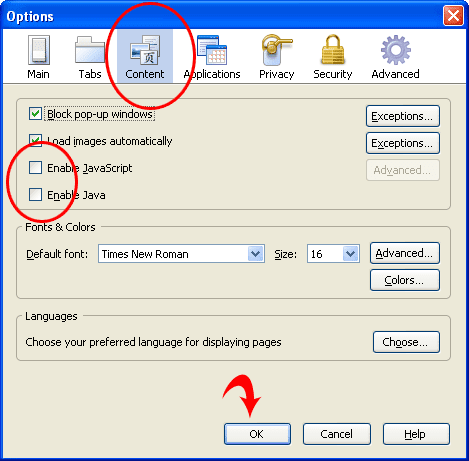
  • Window option below screen shot so then go to Content Tab then Uncheck the Enable javascript and Enable Java options.
java
  • Now download the file you want to download from ziddu.com & after finishing download just close ziddu.com & Check   the Enable javascript and Enable Java options as it is.
Enjoy faster download with Full version software.

"Please share this post if you like it..!!"

June 04, 2012

Tricks to speed up Google chrome performance..!!!

Hi All,
Google chrome is widely used Internet browser these days.
As by changing some of its properties you can optimize its performance. Here are some very useful Google chrome tricks that will help you a lot.


1.Google process priority should be set to High:-
To implement this follow below steps
Go to Start->Run-> taskmgr then press enter.
Then in process tab find chrome.exe->right click on it->Set priority->High.
Press Ok and you have finish it.
See below screenshot o verify it.


2. Disable Google Chrome automatic updates.
This will stop the Google chrome update process "GoogleUpdater.exe" and let the browser work more lightly every time. It helps the browser start-up more quickly. It also save some CPU and RAM usages. We have discussed it here and showed how to disable it.


3. Enabling GPU acceleration and composting.
Now-a-days web pages are more and more graphically designed for the users. So the web browsers are implementing hardware acceleration technology for GPU. This will help the browser to accelerate the GPU (graphics processing unit) signals on pages. Go to browser address bar in Google Chrome and type "chrome://flags" and hit Enter. Enable both GPU composting on all pages and GPU accelerated SVG and CSS filters.


GPU acceleration and composting settings


4. Configuring Settings.
This part will show only those settings whose are important for the browser to get some extra speed. It is also a useful idea for slow internet connection.
Go to the wrench icon top-right corner and click on Settings. Expand the Show advanced settings from the bottom of this page.
Google Chrome Settings

     a. Sign in. Connect it if you really need to sync your bookmarks, extensions, themes etc. Otherwise remain it disconnected.

Sign in option to sync data
     b. Appearances. Un-tick on both Show home button and Always show bookmark.
Appearances Settings

     c. Privacy. Un-tick on Use a web service to help resolve navigation errors and Automatically send usage statistics and crash reports to Google.
Privacy settings

     d. Languages. Un-mark the offer to translate only if you don't use to read content in other languages without English.

Offer to Translate Languages
Read: How to Install English language in Windows 7
     e. HTTPS/SSL. No need to choose Check for server certificate revocation. Because certificate revocation is not needed normally.
HTPPS/SSL

5. Disable Developer mode.
If you aren't a developer then disable this mode by going wrench icon > Tools > Extensions > un-chek Developer mode.
Developer Mode


6. Clear Browsing Data.
There is nothing new to say that your browsing data will slow down the browser. So better is to practice clearing browsing data regularly. This option is available in wrench > Settings.

Clear all browsing data


After Implement these steps you will notice speed variation in performance of google chrome.


"Please share & comment if you like this post..!!!!"


May 08, 2012

How To Get High Speed 3g In Android Phone..!!

Hi All,
Here is a wonderful trick how to get High speed 3G in Android Phones..


Note :-  Do at your own Risk 
Most of the android phone doesn´t support openvpn. So Rooting is the perfect method of using VPN (Free) and to enjoy high speed 3g.

Rooting you phone
Warning :
-> Rooting may void your phone's warranty.
-> You can restore it anytime for warranty.
1. Download needed file (update.zip)
http://forum.xda-developers. com/attachment.php?s= 6a1d738dee3407d0ddb4bc876d8c5f 11&attachmentid=763088&d= 1319722266
2. Copy ZIP file to the root of your SD-card
3. Turn off your phone
4. Switch ON your device in the recovery Mode
[Hold power, volume up, home button together]
5. Select update from SD Card option. (Use the Volume Keys for selecting Options)
6. You will see that the list of files will come from which you will have to select the file which is named as Update.zip
7. Wait a few minute
8. Congrats you have just rooted your phone.
If it doesnot works for you .
Go here:
http://www.addictivetips.com/ mobile/how-to-root-android-2- 3-gingerbread-using- gingerbreak/
Installing VPN
First Register here:
http://droidvpn.com/signup.php
Download the client here.
https://market.android.com/ details?id=com.aed.droidvpn
http://droidvpn.com/download/ DroidVPN.apk
Install this app and click Start.
Enjoy your free 3G on Android.

May 01, 2012

Uniblue System Tweaker 2012 to boost PC speed.!!!!

Hi All,


Uniblue a popular software company is giving away Uniblue SystemTweaker free to users which will boost the performance and speed of your PC.


Uniblue has released 2012 version of SystemTweaker and is available for a free download for users with full License key.

Click here to download Uniblue SystemTweaker 2012.


Features of Uniblue SystemTweaker 2012:-
  • Streamline the Start and Control Panel menu to your taste
  • Adjust network settings to boost functionality and increase security
  • Tweak Windows start-up and shutdown rules
  • Customize right-click menu options
  • Access detailed system information
  • Uniblue SystemTweaker has more than 50 tweaks to enhance experience of Windows users.We are ware that Windows Operating System has Settings which is not easy for everyone to Customize.However, with the use of Uniblue SystemTweaker free you will be to Customize your Windows PC according to your requirement easily.

April 30, 2012

Increase download speed of your mobile..!!!


Hi All,
Here is a great trick to increase download speed in mobile.


Network Accelerator is the app for Java mobile to increase speed of downloading in mobile.
Below is the link to download it.


Click here to download


Enjoy optimized network performance.
  

February 22, 2012

Speed up Mozilla Firefox for best surfing Experience..!!!!

Hi All,


Today Firefox is best browser mostly used web browser in worldwide.
Higher bandwidth user having no problem in surfing but limited speed User less than 256kbps have to reconfigure firefox in a right way to speed it up.
Below are some simple steps that will helpful you to speed up your browsing experience.


1. Type about:config in Address bar of firefox then press enter.

2. Find network.http.pipelining then change its value from false to True.

3. Find network.http.proxy.pipelining then change its value from false to True.

4. Find network.http.pipelining.maxrequests then change it to any value higher than 4, but not more than 8.

5. Find network.http.max-connections then change value from 30 to 96.

6. Find network.http.max-connections-per-server then change value from 15 to32.


After changing these values Restart Firefox and Enjoy improved Surfing speed.!!!!

Twitter Delicious Facebook Digg Stumbleupon Favorites More